expert

My Favourite microphone

Welcome welcome welcome. It's jane gardner again and it's step in front of the camera again, tips and tricks. So today we're gonna talk about the blue yeti microphone. I'm going to be using pictures because I don't want to move my microphone, but I use the blue yeti.

It is a stereo condenser microphone and so it is great for , it has a usb cable on it. So it also, so you can put it into the computer, so make sure you have a usb connection available. So let's have a look at the front of it. I took a picture and let's have a look where are we here? Oh there we are.

So on the front, the front of the blue yeti um you have your volume for your micro mike, sorry for your speaker. So your headphones so you can connect your you're obviously your headphones into your microphone and always listen to what you're saying in terms of what it's producing for you.

You can also do the recording out through it to listen through the headphones and of course the button, the mute button flashes when you're muting and it's a steady red glow when you're recording and it's on. So that's always good to check because I've many times had it off when I should have it on.

But basically, the blue yeti has been really good for me. I haven't really had to do any volume changes in terms of my once I do a recording, but let's look at the back of the blue yeti. So we've got a nice label here and we're going to talk in depth I guess a little about what everything is now gain is basically what you need controls the amount of audio that you want to capture or the level audio that you want to capture on your blue yeti.

And then the pattern button has the pattern of how the microphone takes up sound. So we'll go over gain and the pattern. So you really have to do some recordings and test your you're a microphone when you get it to see what you like the best in terms of gain. If it's always in the same position in the studio and it's real close to your voice.

Then you can probably put it low but until you try and test it, you won't really be able to tell what settings you want for that but for the pattern that is pretty obvious. So let's go over the patterns. So we have the stereo mode and so it's multipurpose it's good for lots of different types of recordings.

If you're not sure what mode you need to record in, then you can just put it on stereo mode and try it out and put a real on the recording and see if you like it or not. The next one setting is omni directional. So it's a complete circle uh symbol on the microphone. And the blue yeti will actually capture audio from a 360° angle all around the microphone.

So it's useful. And let's say you want to record a conference and you can have various people speaking around the table. And you can actually capture this, there's voice because this actually tries to catch the sound of their voice from whenever they're sitting or whatever sounds there are in the in the space and you can hear most of what people are saying, even if they're sitting around a table. So it's good for conferences or when you want to record in any direction.

Now in a studio setting, I don't think it will work for you because you don't want to catch the sounds of the computer as much either or any, clocks or whatever else in the room. So it's best to not use omni directional if you're trying to do a screen casting or recording of a video.

So the third one is cardio mode and it gives the best quality of audio, it's meant for podcasting or for recording voiceovers and it will only be recording the audio from right in front of the microphone right above where obviously the mute button is. So if you switch it to cardio mode and you speak right in front of the microphone, you do well.

But if you speak and from behind the microphone, it's very weak. So you want to be able to be up nice and close at a standard distance away from your microphone. And if you're doing screen casts, I would recommend using the cardio mode because it gives the richest quality of audio. But of course you can't really tell until you set up your studio and do a little quick recording and see if you like the sound.

So the next and last option is bi directional. So it's similar to cardio to stereo, but it's strictly captures audio only from the front and the back. And this is useful if say for example, you're doing an interview and the other person is sitting in behind in front of you so that the back of the microphone as well as the front of the microphone is capturing the voices.

And so you can place the blue yeti right in the middle and I will capture both your audio and the person that you are interviewing. If there are people on the left and right, technically speaking, it won't be capturing that audio but you could always see if it does or not. But it's going to be pretty noisy if you're trying to capture all for directions.

So it's probably best not to do that. So there's four patterns to the blue yeti and basically it's kind of difficult to show you the difference because it all depends on your own studio environment. But I'd recommend either trying the stereo or the cardio this pattern. And of course you're going to have to check your gain and see which you like the most.

I've been trying it quite a bit and I haven't really found the one that I really like yet and when I do I market on the microphone so I can always get back to that setting. So there you go. Maybe we should actually talk a little bit more about all those types of things like gain and just so they understand it a little bit more, so do better because at some point we're going to have to talk about editing your sound and making the best it can be in terms of your videos.

So yeah, I might be good to talk about game next time or if we need to talk about gain. It depends, it depends on using audacity whether or not you need to understand gain and certainly the volume of what you're speaking, you always have to you know, stop your recording and then go listen to it and see if the the volume of the voice is loud enough.

Ah this one may not be because I've been trying to gain but anyway, that's for next time.

My Favourite microphone Read More »

Do you have a livestreaming game plan?

This Video is part of my Offline to Online in 10 days PROGRAM

Welcome welcome welcome, this is jane gardner and welcome again to how to virtualize your business today. I'm going to be recording about how to market using live streaming and I'm really excited this because it's part of my course offline online program and business in 30 days.

So let's go and have a look at how to market using live streaming.

So I'm going to hang out with you today and we're going to look at why you want to do live streaming.

You want to do live streaming because you want to be

  • the face of your business,
  • you can educate,
  • you can entertain,
  • you can obviously instruct
  • you can train,
  • you can sell,
  • you can connect and
  • you can communicate because
  • people get to know I can trust you because you are of business.

The internet is a more focused personal venue and platform and when you use it right,

you can get to be influencer and you can be the face of your business.

So to be the face of your business, you need to show your face obviously. So this is why I'm here, even though I'm kind of small down in the bottom there and they need to show up on a regular basis because you need to be able to do it with daily weekly or we'll forget monthly because people will forget and you need to have a very detailed agenda with a show maybe with giveaways and education and training for those who come and you can have people that you interview to get knowledge and people get used to you being here on the internet and they want to get to know you and trust you. So that's always good.

you need to show up regular so that you have your visitors can come to see your show even when you're not promoting anything, but just have a show, have a training.

So people get to value coming to stop by.

So they come to expect you whether it's every monday or every sunday like for me and if they receive good information and they get value out of it,

they will come again.

So you have to consider the idea of having a show.

You can train visitors and clients to show up by making sure that you always show up on a regular basis at a certain time.

So you can also be recorded video that you share, but you can connect such that they know they all joke with you and ask about your family even if they get to know you well enough.

So always good to be able to connect on the internet.

So this is why you want to come out and be the face of your business because

you will have a tribe of raving fans who

like you

trust you

because they know you're going to be giving value and entertain or educate them every time that you show up and

they know that after an enjoyable half an hour or an hour with you, that they'll actually have something they can take away with from you from your show.

So that's why you need to live stream to come out from behind the curtain and be the influencer expert and authority that you are in your business.

So as I'm in this for a course, there's homework for those who are in the course, download the marketing plan and start planning how you're going to be unique different from your competitors and who is your target audience and do some research on the success competitors. What they're doing.

Are they live streaming or aren't they live streaming? What about your audience? Are they here right now? I don't know, it's six o'clock my time. So it's probably probably in bed already, but I will still be here because my video will be here.

So there you go. So do your homework by the end of the program. You should have a content creation and marketing plan using live streaming. So I'll mention it as we go along so that you know which section of the marketing plan you should be completing. But for now just download it and find out where you should start by having a look at the marketing plan information.

For resources needed to livestream go to http://jgtips.com/rguide

Do you have a livestreaming game plan? Read More »

how to prevent ambient sound from ruining your videos

Welcome. Welcome. It's jane again, doing another show. And um this time we're going to be talking about the audio acoustics in your room. I know I kind of skipped over this and went onto microphones, but we're going to say, we're going to talk about padding and acoustic panels.

So laura still going to have another episode where we talk about audacity, the free software you can use to record your um voice and but you can also use audacity um to basically um, make a recording of you speaking and then listening to the recording and seeing what kind of sounds you sound you hear other than your voice that you don't want to hear.

Because audacity has a few things in there where it can cancel out those sounds and and take them out. But we're going to talk today about how to try and take some of those problems in your sound out before you actually record. So today, um you've either realized that you have an echo or maybe your audio is perfect. You don't have to do any of this. So even better.

But if not, um, and you have something noisy that, you know, you can't get rid of, for example, your computer, but you could put it into an acoustical box, like a box um with acoustical panels on it, so it absorbs sound and it doesn't come out or something like that.

But you can probably find something fairly reasonable to do this, but you cannot easily edit bad audios noise in post production. I mean, you can, but you know why why, why try and get it, you know, make it better the first time.

So we're gonna talk about um a couple of things um you may have already heard about if you do any podcasting, um audio foam panels. And the other one is called a bass trap, which probably we've you've not heard of and I'll show you a picture of because it's mostly used in musical music studios and I'm going to sneeze.

So excuse me while I sneeze. So what are based panels? Bass traps and phone panels? Well, essentially to do one thing, which is to absorb echo and clean up your reverb in your recording studio. But although they may look the same, they're actually a bit different and they serve different purposes.

So the smaller the room is, the more padding you will need in order to absorb sound because of the echo when you speak your voice and your audio just bounces all over on the walls and comes back to you if it's too small. So we probably going to have to put up some acoustical panel to reduce the echo, for example.

So bass traps are used to filter out or remove the low frequencies or the bass frequencies. Now it really depends on what you're building your home studio for if you're going to record music for example, traps, it will help you because they will um help you to control the bass frequencies when recording.

Um but also there are bass frequencies in your voice. But generally speaking for bass traps, you would find a lot in recording studios, music music recording studios, if you're doing podcasts or videos like this, then you may not need based traps, but you definitely need foam panels. So phone panels are for mid to high frequencies and bass traps and foam panels can work together, or you can use just either one, but mostly it's used together.

And if you don't need it all well even better, but if you're not in a recording studio or using musical instruments, you can skip the bass traps and you can just focus on getting phone panels. So we're gonna show you some of the what they look like, just so when you're looking in the catalog, you can figure that out.

So we're looking at um having a little bit of a cold, but we're looking at the acoustics for your studio. And for example, these are foam panels that you can get there are triangular in in cross section and so they absorb sounds since their phone. And um here's a picture of a bass trap over on the left in the corner of the room.

And those are foam panels adhering to the wall. So bass traps. Um they're basically is is in the corners of the room, is where your rules meet each other and there triangular. And so of course they absorb more sound because they're thicker in the middle and these angles are the ones that reflect the most amount of audio.

And it's responsible for serious audio problems sometimes in in the corner of the room. So it's always good to put some acoustic panels there. And those are the base, it's triangular. Ones are the base type, which you probably don't need.

Um so if you were to get the bass drops, they'll fit in nicely here and then 90° angle on the wall. Um the triangular. Um but you don't really need bass traps if you think your audio is pretty good when you do your test and you're not recording music. So in this section, you can position your acoustical panels, phone panel in the corner to absorb any sound that might be echoing off in the corner because the it's not as critical for podcasting and doing videos.

It's basically you can curve it and attach it and it'll act in a same way, very cost efficient way to do it. Um so the next one you want, of course to cover is your hard surfaces, for example, the door in your studio. So you can also put um phone panels around the door handle, cut it. That's what's nice about foam.

And because hard surfaces also tend to reflect audio, make audio bounce. And that creates an echo. So you can basically, this is uh what acoustical panel looks like. It's a triangular in nature. You can get it of course on amazon. And so you can use it um you've got to use more than one, of course, but you don't know how many until you actually try it out.

So you might want to just start with a few and then try and see what it does to absorb your sound and then if it's working, that's great. If it doesn't work well, you just don't use it. Um, so most importantly, it comes in two different colors.

So you can have some fun and arrange your foam panels anyway you want and it makes your studio look cool. So the recommended coverage area is 48 where feet for your studio and this is just a rule of thumb, it really depends how big your studio is, but you should have about 48 square feet of it on one wall.

And then, so you can always get packages of 12 square feet packages of that, for example. Or you could get 12 square feet, which is 12 panels and then times 12. Now that being said, you don't have to go and get 48 square feet of old ones because as I mentioned before having too much of this panel actually can affect your audience in ways that you don't really want it to.

So you can do more harm and good, so start with your 12 square feet and you can scale up by adding another 24 or another 12 to different areas in your home studio or office studio until you get the right balance and removed all the acoustical problems like echo and buzz from your studio. So obviously if you have a perfect studio and there's no problems with sound after you do a test and I would definitely use audacity because it has a um, it has a noise um leveling I think, and it also has a noise removal and so when you take out the, your actual voice, you can, you can see the little um noise being made of ambient noise before we actually speak and we'll, and we'll talk about that later um because it's, it's really good to recorded and then listen to it um very quietly in your headphones to see if you're happy with the sound of your voice.

And also, of course you're happy that there isn't too much buzz or noise and you don't have to clean it up. Well, if you want to clean it up then it would be worth getting some foam panels for your home studio to set up and I might order some soon just to try it out. Maybe we'll see what the difference is if I put some foam panel up, if I remove any of the noise, although my basically I found that the microphone having a good microphone, like the blue yeti or the audio technica is great for um, sound that you really don't need to worry too much about not sending natural.

Um, so that's that's it for today. I'm gonna make a note to um do one on audacity, how to install it maybe, and then show you the possibilities of using audacity for your home studio as well. As of course, later on you will use other software like beauty editor, but this is a good start.

Um so we've gone through most of the sound um possibilities for your studio and now I think we've done a couple of microphone types and I think we should probably get onto lighting. That's pretty important. And so my lighting right now is pretty cool, pretty white. And so I have to adjust that, make my face warmer.

But that will be for next time I'll show you that you have a lot of control inside your web cam that you buy as to changing the colors of your video. Thank you for listening. This is jane gardner.

how to prevent ambient sound from ruining your videos Read More »

Microphones Blue Yeti review

On Step in Front of the Camera series, I look at the Blue Yeti microphone and the settings on this version which gives you sound choices for your recordings. Do you know the difference between cardio and omnidirectional sound? Sound quality of your recordings whether for podcasting or video will give you success so the microphone quality is critical. For more tips and techniques, go to stepinfrontofthecamera.com

Microphones Blue Yeti review Read More »

Control your Look while on Camera

Hello everyone today. I'm going to be showing you some fun stuff about color and your webcam. Now, this is not me speaking. This is a recording I had to use outside of seeing me live. So ignore what they're saying. But this is behind the scenes in my xsplit software.

And I'm going to be showing you how to change the color on your computer. Well actually no on your software. So I've got two scenes here and each scene has a logitech brio in each scene so I can change one scenes color from another. So I've opened up the webcam here for the webcam and it has different choices.

And so the first thing we're gonna look at is chroma key. I've just turned off the green screen and matched it to the green color just in that scene. So it's black. And then you can put a scene behind that. But chroma key works really well in this software xsplit because as you can see my curtain is very wrinkled, but you can't see any wrinkles in my other scene where I've hidden it as they say, so, and then they have the parts to adjust color.

So this is brightness and this is in each scene. So you can go up and down with the scene. It has certainly defaults of course. And so you just fiddle with it until you find something that you're happy with in terms of the brightness. And then we have contrast. So obviously that contrasts very hi and then to very low, once you go down, there is the low contrast and you just find the one that you're happy with for the scene.

And then we have alpha and alpha is just basically I'm getting the image in there, it seems to disappear. So we'll have to talk about that later. That's one of these things you don't know about. And then we have hue, so you can change the hue of the scene, they're basically from green to red, yellow, more yellow.

Let's see where we're going here and we haven't done anything. That's that's where we go, we're going very green on that end and then yellow and then it probably will be reds at some point. But yeah, it's a little yellowy red. So we're just adjusting the colors to make it look like we wanted to and then we have saturation which is the next one and that will be how much color to put into the scene.

So right now it was okay, but this is way too much saturation for the color. And obviously you can go all the way back to black and white and remove all saturation. So you have quite a good control of your colors and your hues and your saturation and then ou can of course find the one that you like the best or you can reset it to what was set before.

And then you can also change the color of the background, but I don't use that I use green screen and chroma key. And as you can see each scene is different and separate different colors. You can control each scene with each webcam so you could have different colors in each scene depending on the person's hue or what you want to show their. So these are two scenes with two webcam settings and so basically two webcams in each scene.

So one webcam, even though it's the same webcam, it has different settings for each scene, that's what I wanted to say. So that's quite powerful. You can do that just like a studio and now we're going to have a look at what are we looking at now. So we're going to look at the webcam and how you can put change the settings inside the webcam as well.

And if you didn't know that there's an advanced section, that's very good. And so we're going to have a look at inside the webcam and how to change some of the settings in there if you need them to. So first we have to get the webcam open and but before that I wanted to show my invisible chair that reappears instantaneously the minute I pull the green fabric off of the chair so you can go rewind if you want to look and see how much it disappeared before.

It's very good when you have a very ugly chair. So now, so now we're going to go and look at the web cam in the background settings for the webcam whichever brand you have, they should have some kind of webcam settings for you for the camera to change the camera settings and let's go and have a look and then open up the webcam.

And so first there we go, let's try that again and open up the webcam and here we go. I had to go find it and it was hiding in the background. So I went and cut out a few of the scenes so we don't we don't waste time chasing and this is what this one looks like for the logitech brio.

But of course your logic tech 920 is probably different or your other webcams but they all have similar principles. So usually they have a zoom and pan cross where you can change the angle of the webcam. You can zoom in and out with the webcam. You can't in oh no here I go zooming in and out.

I just can't pan so you can zoom in and out with your with your webcam. But personally I don't use this I use I use my software to manipulate what size I want objects to be. And then of course my webcam which I haven't shown you the position of is in the way so that's why I keep moving back and forth.

So anyway so andand also you can have on this one anyway, you can have a standard image or you can have a widescreen image but it doesn't show in this because of the software and of course you can have hdr which is better quality. That's why I probably got this webcam but I don't really use it because I don't want to use up.

It gives me I have to use more memory in order to store it. So the field of view is was interesting. I didn't know you could have almost three types of 65 is what I usually use because I want to try and keep my green screen very centralized but then there's 70's 8 and there's 90 and that gives you a wider field of view.

So then of course for me that's an issue because then I you can see outside of my green screen and so I want to keep it nice and tight so I always keep it at 65. Not that that's relevant for you, it depends on your camera, but these are some of the standard settings for a web cam in the back in the settings that you should try and make sure you set and there I am peering again because I can't see because it's in the webcams in the way. But basically the first one you want to look at is brightness and of course you can maybe adjusted in the software as well.

But if you don't have the software, this is where you can adjust the brightness of your image and there we go. Just you pick something that you like. Same with the contrast, you obviously can go up to 100 but you just pick what you like for your contrast. Auto focus. I don't like auto focus because it'll auto focus when I move and all of a sudden I'll be blurry and then focusing.

So I usually turn autofocus off and because I can manipulate it in the software as to what the image image is in terms of how far away it is from the camera, but that's for another discussion. And so then we're looking at color intensity and color intensity can go from, that's up to you know it's at 50% right now.

So I guess it goes up to 100 and so you can do something ridiculous up to 100% and then you just find it where you like it the best and this is an important one that had an issue with last time was the white balance. And so if I turn off the auto white balance which sometimes can be a bit too white. You can adjust it to what you want it to be what you like.

You don't have to obviously do the auto out and regardless I think I have a bit of a pink in my cheeks already, so I don't have to do too much but I don't want it to be as white as it was yesterday. So try and get some color in my face. So there you go inside your webcam. You can change all your colors if you don't have the software I have and as you can see just by comparing the two, they are quite different.

The other one is quite red and blurry and the one on the right is a bit more human. There you go.

Control your Look while on Camera Read More »

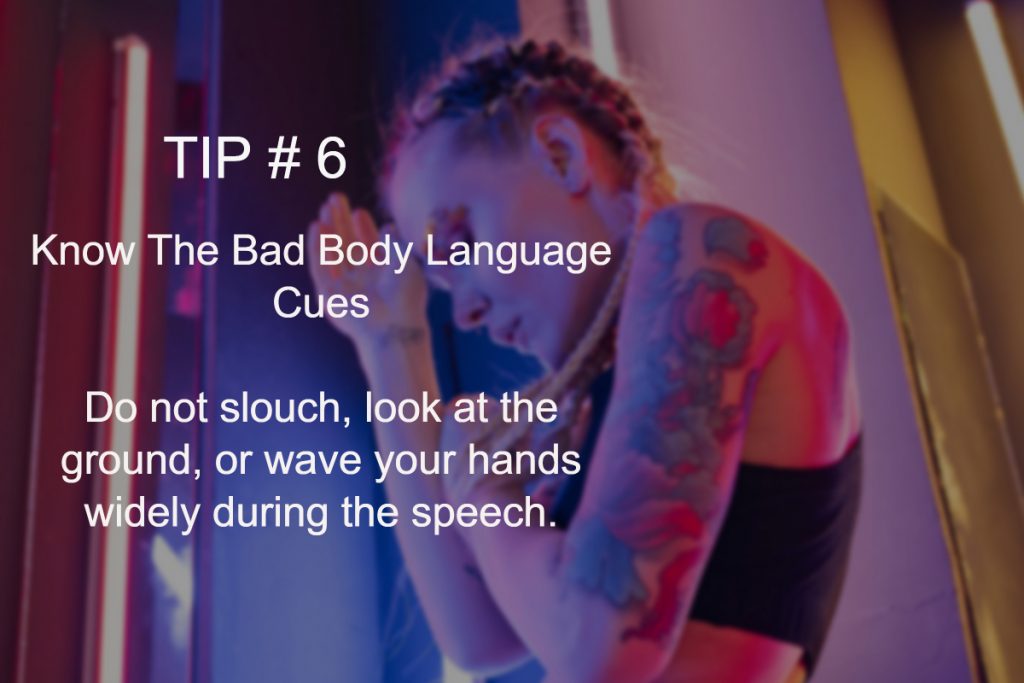
lady slouching

Body Language can affect your Confidence

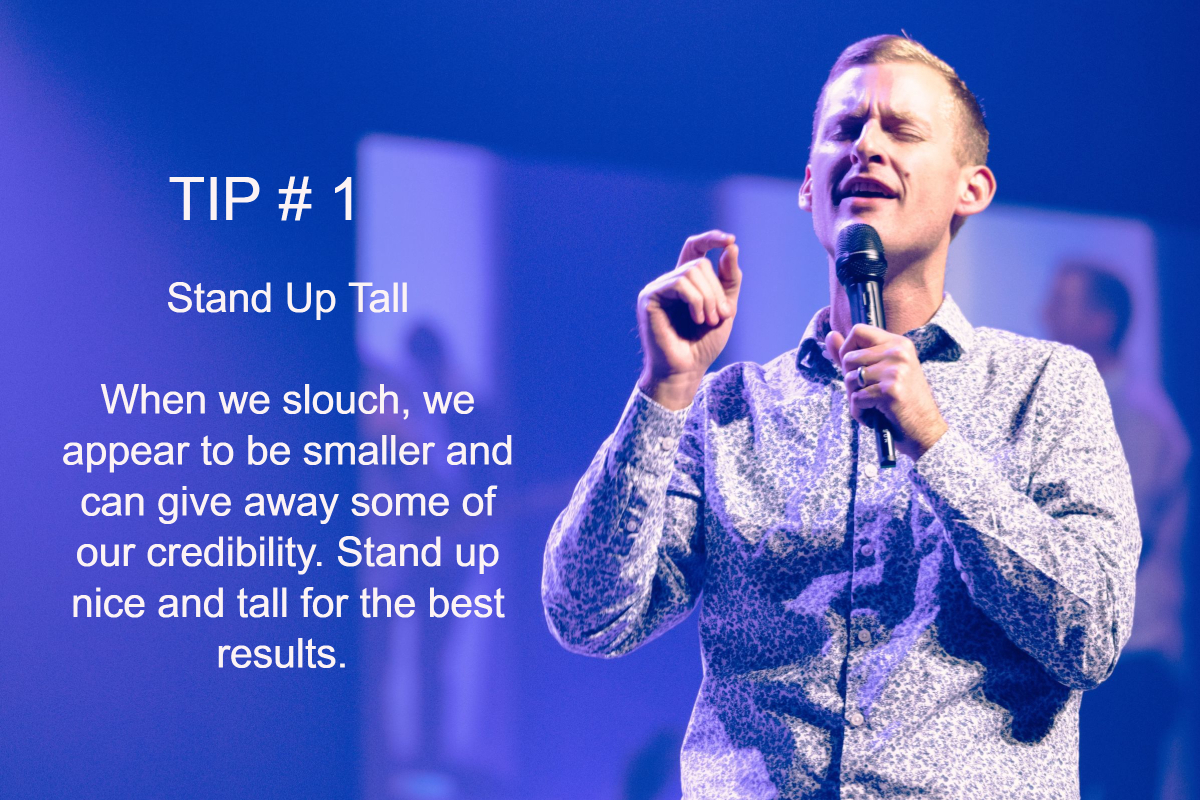
Stand up Tall

There are many different things that will both influence your confidence and also be influenced by your confidence. Confidence is often a somewhat circular subject matter and this can often make it hard to know where to start.

This is the case with body language. Being confident gives you better body language. But having better body language also makes you more confident!

What Does Confident Body language Look Like?

Confident body language basically involves looking relaxed and calm. Many of us assume that confident body language will necessarily involve looking menacing or intimidating, but the reality is that this makes us look defensive.

Likewise, attempting to look aloof or cool will simply make you look like a try hard.

Remember the kids at school who smoked in their leather jackets and were just kind of tragic?

Being truly confident means you have nothing to prove, it means you aren’t overly concerned what other people think and it means you’re able to relax because you feel unthreatened.

For instance, while some people might think that having their arms crossed makes them seem aloof and indifferent, the reality is that it makes them look guarded and uncertain.

In contrast, if you have your arms apart and your legs apart, you are allowing yourself to be vulnerable. This instantly makes you seem far more confident because you aren’t concerned about threat from others and because you’re allowing yourself to take up lots of space!

Look comfy and you look calm. Look calm and you appear confident!

More Signs of Confidence

There are other signs that you are confident that go beyond comfort of course. One example is the subtle indication of ownership. There are many ways you can subtly imply ownership but the most common is touching. If you learn against a doorway, or if you put your arm across the back of the sofa, it creates the impression that you feel almost as though you own that thing.

That’s why leaning on a wall or doorframe is a surefire way to communicate a lot of self-confidence.

The same actually goes for touching people. And this is why touching someone on the shoulder can make you seem much more confident – especially if it is done in an encouraging and non-threatening way.

Remember though: body language is best read as a whole. It’s not so much a matter of each individual aspect of your body language that will convey a sentiment as it is the entire package.


Body Language can affect your Confidence Read More »